Running the Simulation
Overview
The simulation runs the real open_mower_ros logic and the OpenMower app against a
simulated mower instead of real hardware. mower_logic, navigation, the coverage
planner, monitoring, etc. all run for real and unmodified — only the low-level board
(drive, mower, IMU, power, GPS) is emulated by the mower_simulation node.
This lets you:
- Try OpenMower before buying or building any hardware.
- Test a specific combination of
open_mower_ros/ app versions. - Reproduce and debug behaviour without a robot in the garden.
The whole thing runs in Docker and is controlled by a small wrapper script, sim.sh.
Prerequisites
- Docker with the Compose v2 plugin (
docker compose). Install from https://docs.docker.com/get-docker/ . - The
open_mower_rossource checkout — the simulation stack lives in itsdocker-simulation/directory.
No GPU is required; the simulation view uses software rendering by default and works on any host and OS (Linux, macOS, Windows).
Quick Start
From the open_mower_ros/docker-simulation/ directory:
./sim.sh up
The first run builds the simulation image locally (this can take a few minutes). Subsequent runs reuse the built image and start in seconds.
Once the stack is up, give the simulation a minute to report healthy, then open in your browser:
| URL | What it is |
|---|---|
http://localhost:6080 | Simulation view (RViz) via noVNC — no password, no VNC client needed |
http://localhost:3000 | OpenMower app (newer, with map editor) |
http://localhost:8080 | OpenMower app (legacy Flutter “blue” version) |
Replace localhost with the host’s address if you run Docker on a different machine.
./sim.sh up, then exploring a few other sim.sh commands and rostopic echo.The stack ships with a starter mowing area, docking point, and mower config already set up, so there is something to drive around immediately instead of an empty map.
The Simulation View (noVNC)
Open http://localhost:6080 to see RViz — the visualization of the simulated mower,
its map. This is where you watch the mower move, follow
paths, and dock.
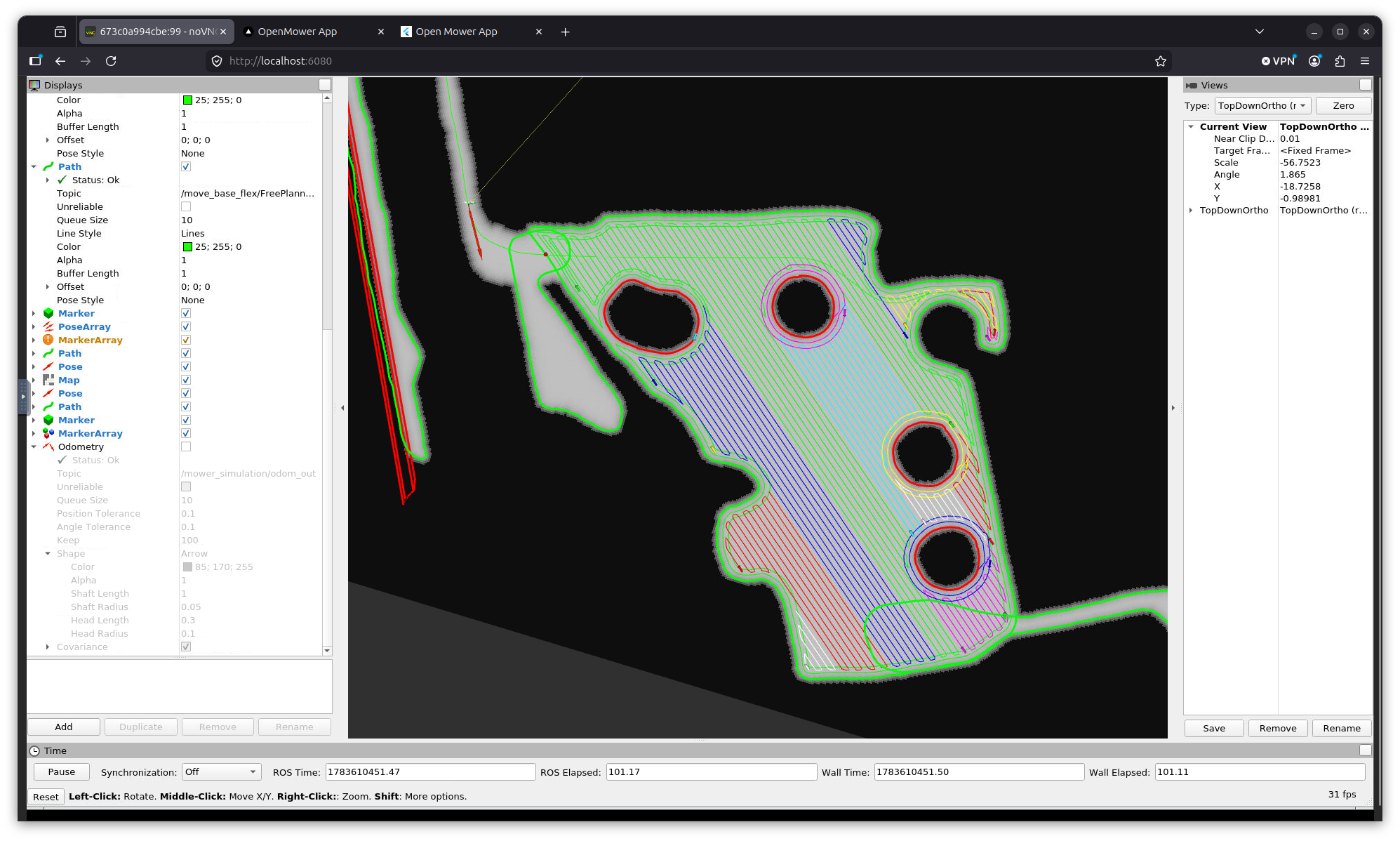
If you prefer a native VNC client over the browser, connect it to <host>:5900 (no
password) instead.
The OpenMower App
Open http://localhost:8080 for the app. This is the same interface you use with real
hardware — status, manual driving, area recording, and starting/stopping mowing all work
against the simulated mower.
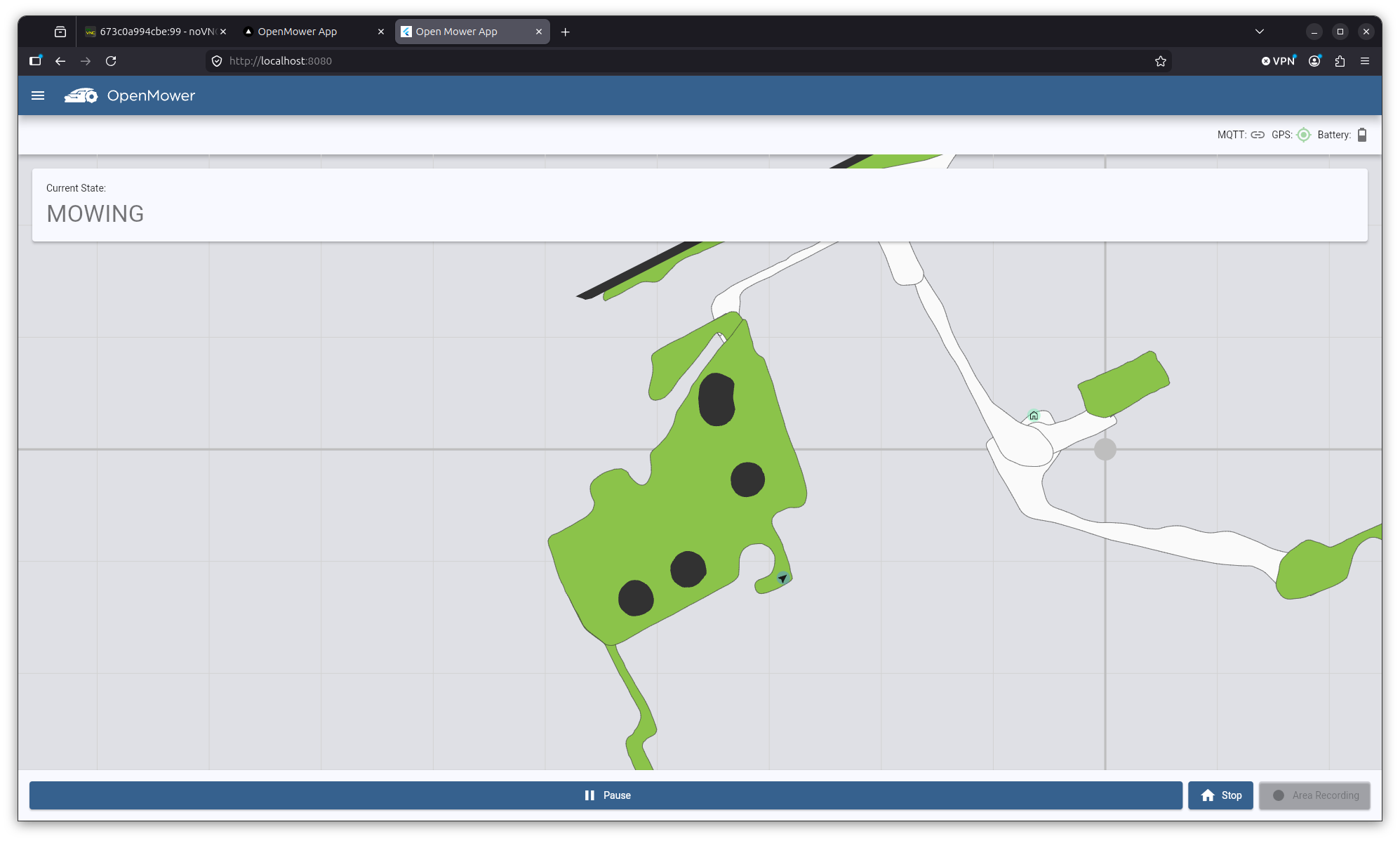
From here you can start a mowing job on the pre-loaded area and watch the mower follow the coverage path over in the simulation view.
Driving the Simulation into Test States
The simulation exposes a sim-control layer: the app can push the simulated mower into specific situations that would be hard, slow, or destructive to reproduce on real hardware, and reads back a live sim-status stream. This is the main reason to test in the simulation rather than only in the garden.
You can:
- Take manual control at any time — the starter config sets
always_allow_joystick, so manual velocity commands override the mower’s inputs regardless of what the software is doing. You can grab control mid-mow and drive it off course to see how it recovers. - Trigger / clear an emergency — verify the mower stops and recovers correctly.
- Simulate a stuck mower — wheels keep reporting odometry while the true position freezes, so you can test stuck-detection and recovery.
- Set the battery voltage — drive it low to test undervoltage / go-home-to-charge behaviour, or simulate charging.
- Toggle GPS quality — switch between a good RTK fix (~2 cm) and no fix (~1 m) to test how navigation reacts to GPS loss.
- Jump / displace the position — teleport the mower or nudge its heading to test recovery from a bad GPS jump.
- Move the docking station to the mower’s current position.
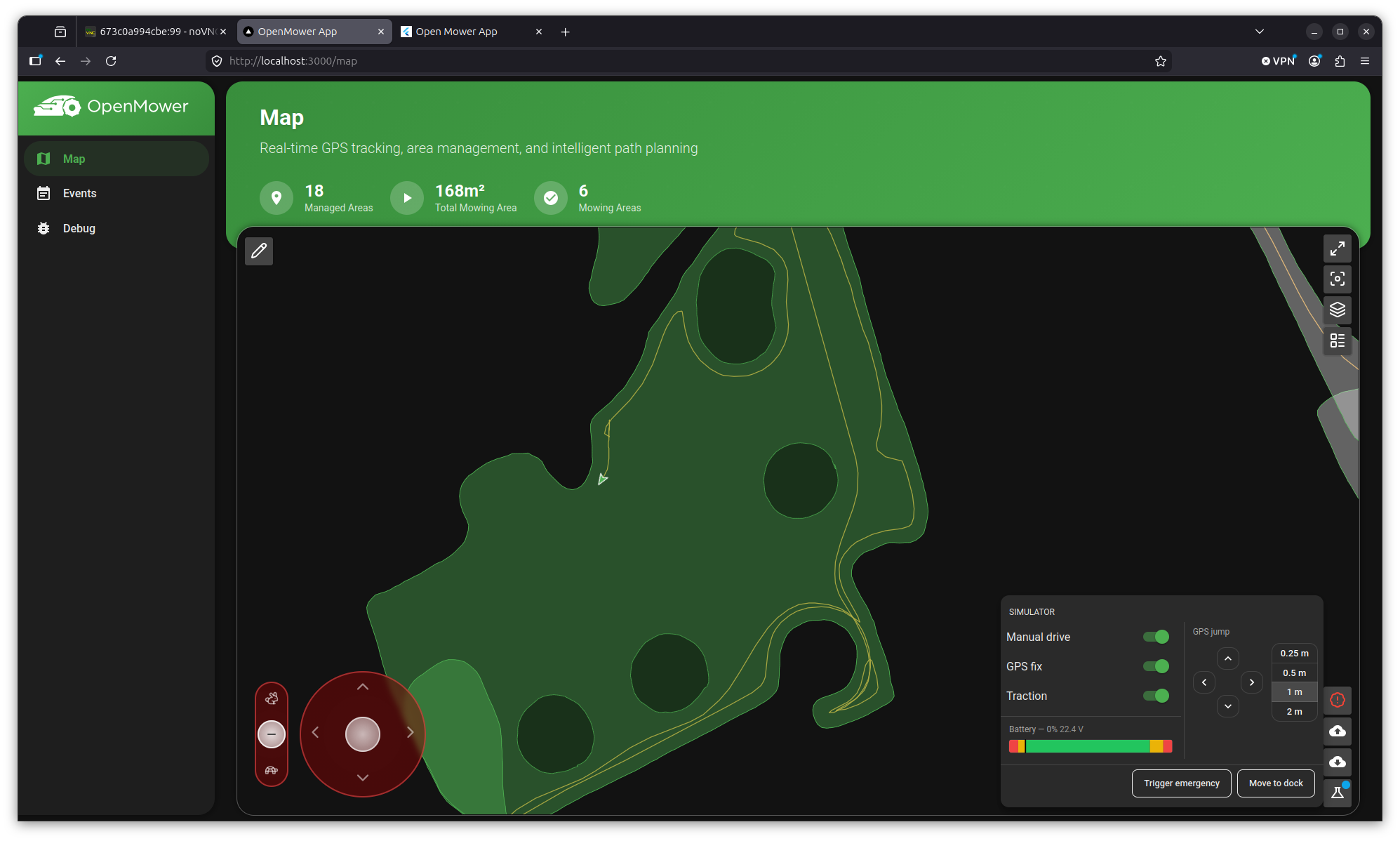
These controls live in the newer app (http://localhost:3000); make sure APP_VERSION
in .env is recent enough (edge has them).
Choosing Versions
Which versions run is controlled by .env in the docker-simulation/ directory. The
checked-in defaults work as-is; edit them to test a specific combination:
| Variable | Controls |
|---|---|
VERSION | open_mower_ros image tag — a release tag (e.g. v1.2.3), edge (latest main), or a PR/sha tag |
APP_VERSION | Newer app image tag (map editor / green style) |
LEGACY_APP_VERSION | Legacy Flutter app image tag |
NOVNC_PORT / VNC_PORT | Host ports for the simulation view, if 6080/5900 are already taken |
DISPLAY_RESOLUTION | Virtual display resolution for the simulation view |
VERSION sets both the open_mower_ros image and the simulation image (built from that
same tag), so the simulator’s message/service definitions always match the version under
test.
After changing a version, rebuild so the change is picked up:
./sim.sh rebuild
Plain ./sim.sh up never rebuilds on its own — it reuses whatever was already built.
Common Commands
./sim.sh wraps docker compose with friendlier errors. Run ./sim.sh help for the
full list.
| Command | Does |
|---|---|
./sim.sh up | Pull latest images, then start the stack in the background |
./sim.sh down | Stop the stack and remove its containers |
./sim.sh restart | down then up (also pulls images) |
./sim.sh rebuild | Force-rebuild from source, then start — use after changing code/config or VERSION |
./sim.sh logs [service] | Follow logs (e.g. ./sim.sh logs open_mower_ros) |
./sim.sh ps | Show container status |
./sim.sh reset | Restore the checked-in starter map and params |
./sim.sh clean | Destructive: wipe all simulation state back to empty (asks first) |
Resetting the Map
The map, params, and ROS home persist as plain files under ./data/ (bind mounts), so
they survive down and restarts. To go back to the checked-in starter map:
./sim.sh reset
To wipe everything under ./data/ (map, params, ROS home, recordings) back to an
empty state:
./sim.sh clean
Troubleshooting
If the stack seems stuck, check that the simulation container is healthy and tail the logs:
./sim.sh ps                          # mower_simulation_gui should be "healthy"
./sim.sh logs mower_simulation_gui
./sim.sh logs open_mower_ros
open_mower_roswaits for the simulation. By design,mower_simulation_guistarts first and owns the ROS master;open_mower_rosonly starts once it reports healthy. This mirrors a real boot, where the low-level board must be present before the ROS logic looks for it.- A change isn’t showing up? If the stack was already running, you likely need
./sim.sh rebuild— plainupnever rebuilds on its own. - Ports already in use? Change
NOVNC_PORT/VNC_PORTin.env. - GPU acceleration is off by default and not needed. If you have a GPU, uncomment the
relevant block for
mower_simulation_guiindocker-compose.yaml; the container auto-detects it and falls back to software rendering if it can’t be used.
Testing Local Source Changes
To run open_mower_ros from your local checkout instead of a published image, build it
once:
./sim.sh build-from-source
Then set BASE_IMAGE=local/open_mower_ros:local in .env and run ./sim.sh rebuild.