Using a Gamepad
Using a USB gamepad is the most intuitive way to control your OpenMower during the area recording process. Instead of relying on the on-screen joystick in the web app, a physical controller gives you precise control over the mower’s movement — making it much easier to drive clean outlines around your mowing areas.
Any Xbox-compatible USB gamepad works out of the box. Simply plug it into one of the USB ports on your Raspberry Pi and OpenMower will detect it automatically. No additional configuration is needed.
Recording Mode Required
Gamepad control only works while OpenMower is in recording mode. Enter recording mode using the OpenMower app before using any of the buttons below.
If no map has been recorded yet, OpenMower will automatically start in recording mode — no action needed.
Video Tutorial
The video below walks through the entire area recording process, including how to use the gamepad to drive the mower and save mowing areas.
Button Reference
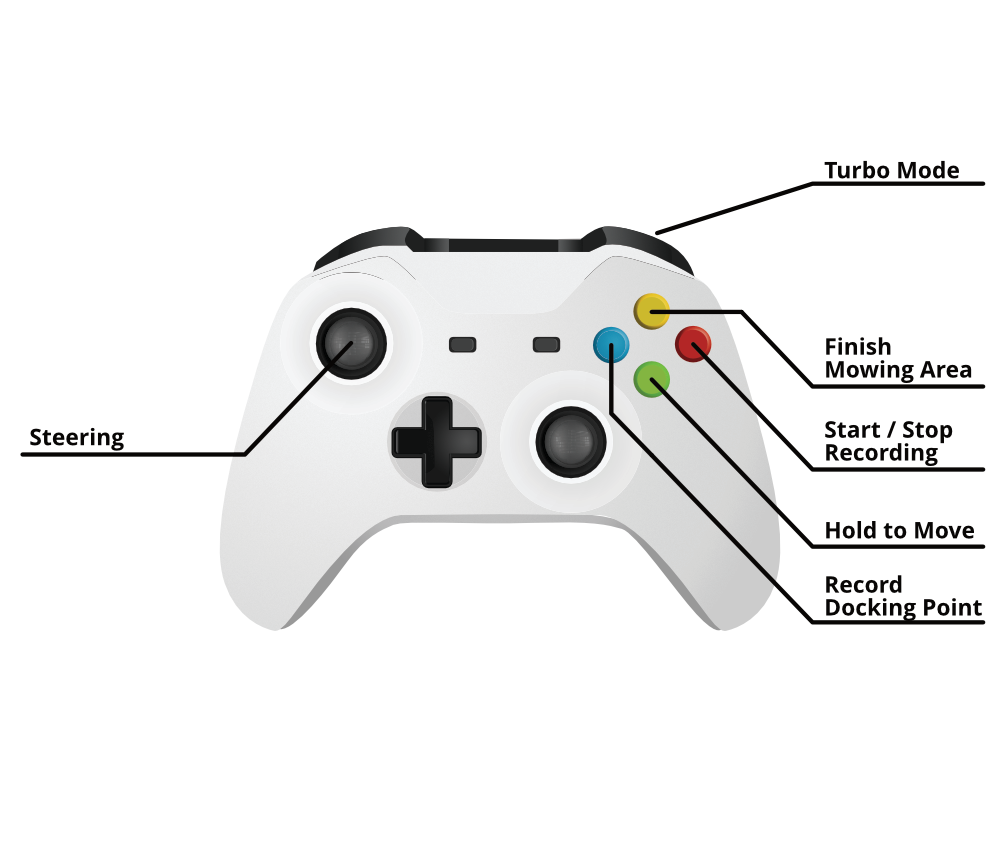
OpenMower Gamepad Controls (image licensed from shutterstock.com)
The table below covers every button used during normal operation and area recording. Most of your time will be spent holding A to drive and using B to start and stop recordings.
Driving
| Input | Action |
|---|---|
| Hold A + left analog stick | Drive the mower |
| RB | Turbo mode (faster driving) |
Recording Areas
| Input | Action |
|---|---|
| B | Start / stop recording the current polygon |
| Y + D-PAD UP | Finish and save current area as a navigation area — the mower can drive here but will not mow |
| Y + D-PAD DOWN | Finish and save current area as a mowing area — at least one is required |
Docking Station
Recording the docking station requires two separate position fixes that define the approach direction. The line between these two points tells the mower which way to face when returning to dock.
- Drive the mower to a point roughly 1.5 m in front of the docking station, facing toward it. Press X to record the first point.
- Drive the mower forward until the front wheels are just at the edge of the docking station — do not fully drive in. Press X again to record the second point.
| Input | Action |
|---|---|
| X (first press) | Record approach point ~1.5 m in front of the dock |
| X (second press) | Record dock entry point at the edge of the station |