Step 2.2: Prepare the SD Card
We have created a Raspberry Pi image which is modified specifically for Open Mower use. The modifications include:
- Networking setup for the robot’s internal network
- A hotspot to make it easy to connect the robot to your home network
- Docker installation for easy container management
- Browser based terminal access to the robot
- … and more!
In this step, we flash the image and do some basic setup for your mower.
Info
This guide is for the Lite version of the Raspberry Pi Compute module (the version without eMMC storage).
If you have a compute module with eMMC, you can safely skip this step for now and continue with preparing the mainboard.
You can flash the CM4, once your mower is powered up. Here is the official guide on how to do it
Prerequisites
In order to follow this guide, you will need:
- Raspberry Pi CM4 Lite (no on-board memory)
- Micro SD card with at least 16 GB
- A PC with the Raspberry Pi Imager Software installed:
🔗 https://www.raspberrypi.com/software/ - The latest OpenMowerOS Image:
🔗 https://github.com/ClemensElflein/OpenMowerOS/releases
You can download it in theAssetssection. You don’t need to unpack the image. - An SD card reader
Flash the Image to your SD Card
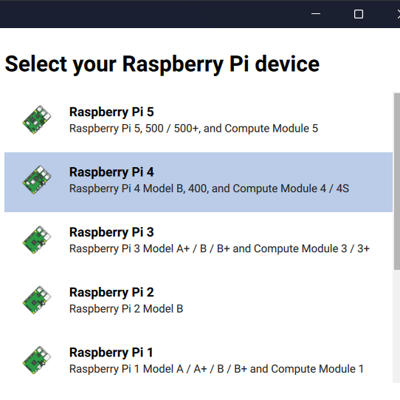 Pi Imager Step 1
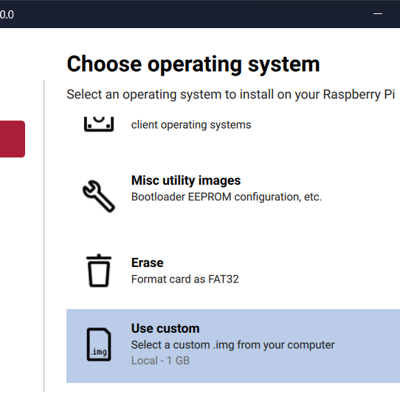 Pi Imager Step 2
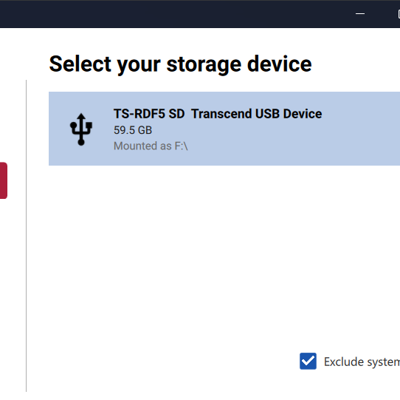 Pi Imager Step 3
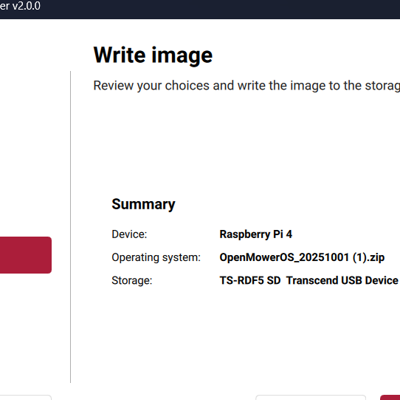 Pi Imager Step 4
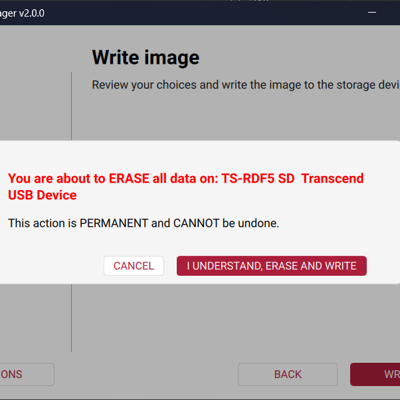 Pi Imager Step 5
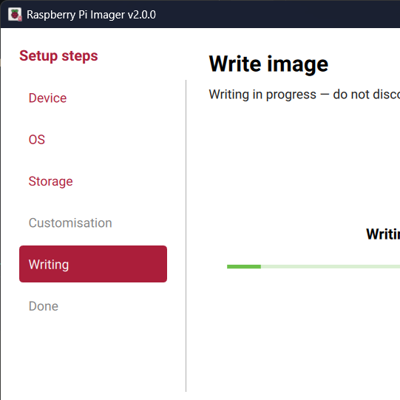 Pi Imager Step 6
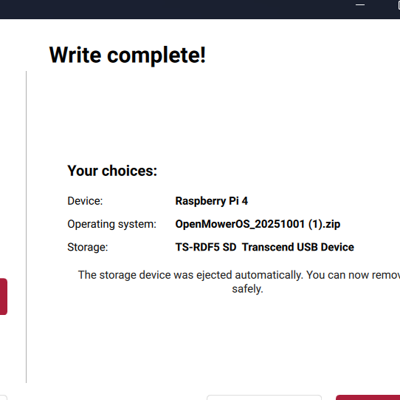 Pi Imager Step 7

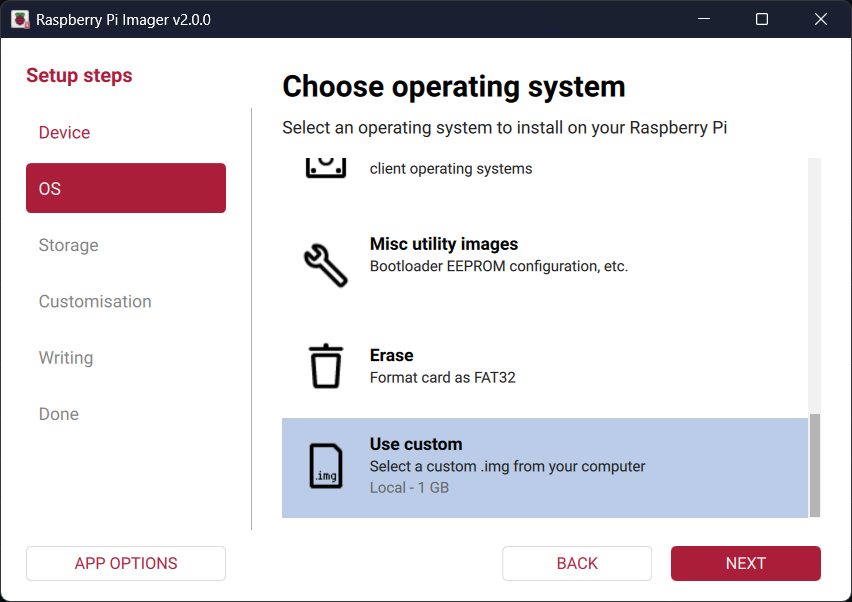


- Start the Raspberry Pi Imager Software.
- Select
Raspberry Pi 4. Click Next to continue. - Then click
Use Customto open the image file you downloaded earlier. Click Next to continue. - Select your SD card from the Window. Make sure that you are really selecting the correct SD card, all data on the selected device will be erased!. Click Next to continue.
- Check that everything is correct and click
WRITE. You will be prompted to confirm once again, you might be prompted to enter your admin password. - Wait for the process to finish.
Configuring the Image
Older versions of the Raspberry Pi Imager software allowed the image to be configured directly in the software. In the current version, this is no longer possible.
When using an older version of the Raspberry Pi Imager, you can still configure the image as usual, but renaming the user is not possible. The user will always be named openmower.
Done 🎉
You can now remove the SD card from your PC, it is ready to be used with the Open Mower software. Set it aside and continue with preparing the mainboard..