YardForce Classic 500(B)
v2 Hardware Only!
This guide here is for OpenMower v2.x Hardware! If you have v1 Hardware, follow the legacy docs here, because for v1 hardware you will also need to modify the docking station!
You have v1 hardware, if:
- You are using a full-size Raspberry Pi
- Your mainboard shows version v0.xx
Prerequisites
Things you will need:
- YardForce Classic 500(B)
- Open Mower Mainboard with all modules installed (xCore, CM4, GPS, 3x ESCs)
- Cover UI Board (optional)
- GPS Holder (3d printed part), GPS Antenna, 2x M2,5x20 screws, 2x M4x16 screws for the GPS holder
Tools you will need:
- XH connector set and some wires to crimp connectors for the emergency stops and the Cover UI board
- Some basic screwdrivers for disassembly and assembly.
Step 2.4.1: Disassemble the Robot
The first step is to disassemble up the robot. This is a bit tricky in some parts, so I recommend you checking my YouTube video here: YouTube Video. The relevant time is: 2:25 - 5:08. Do not follow the video further than that, because it is outdated.
Alternatively, here is a picture guide of the disassembly process:
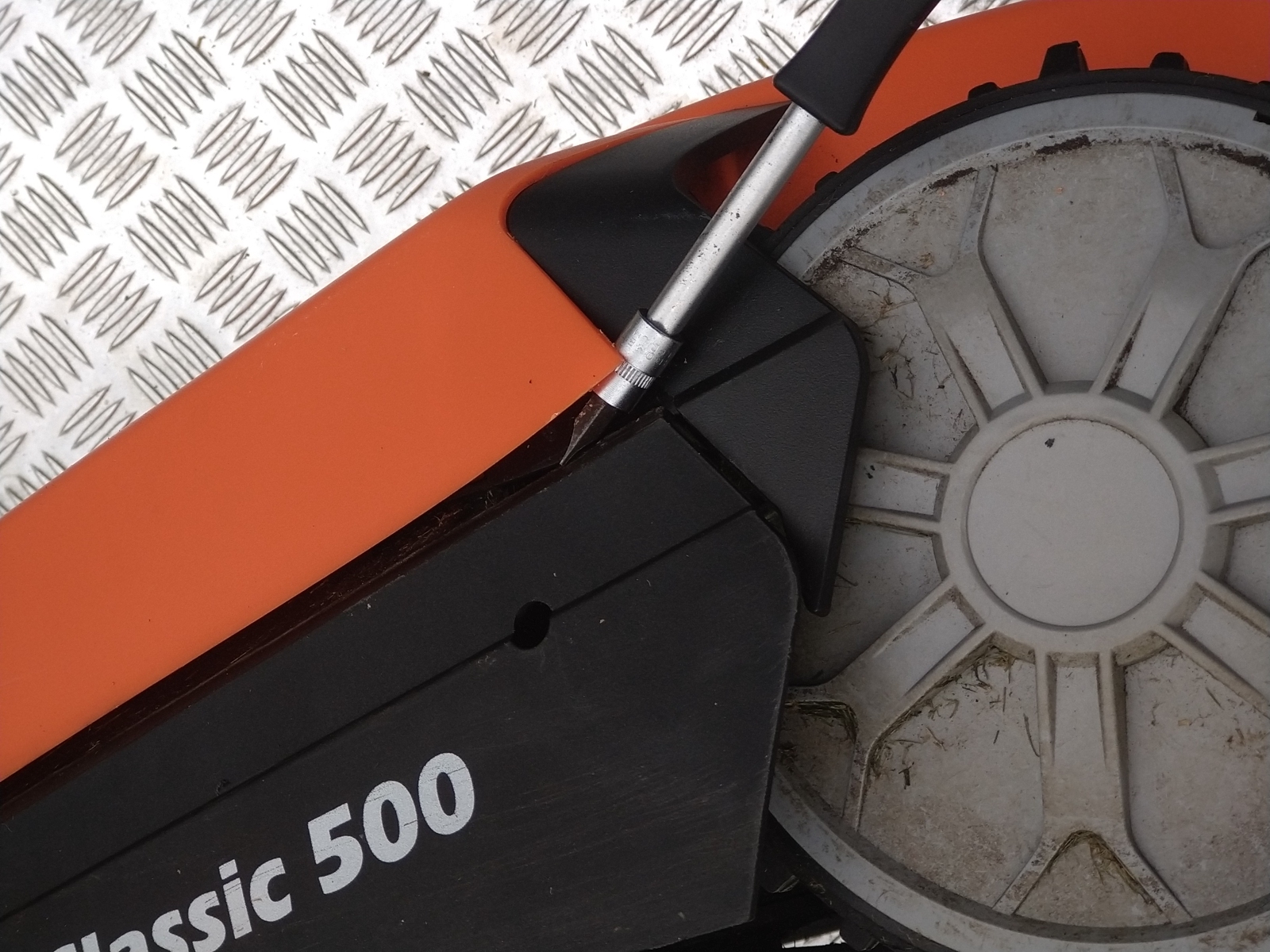
Unscrew top cover


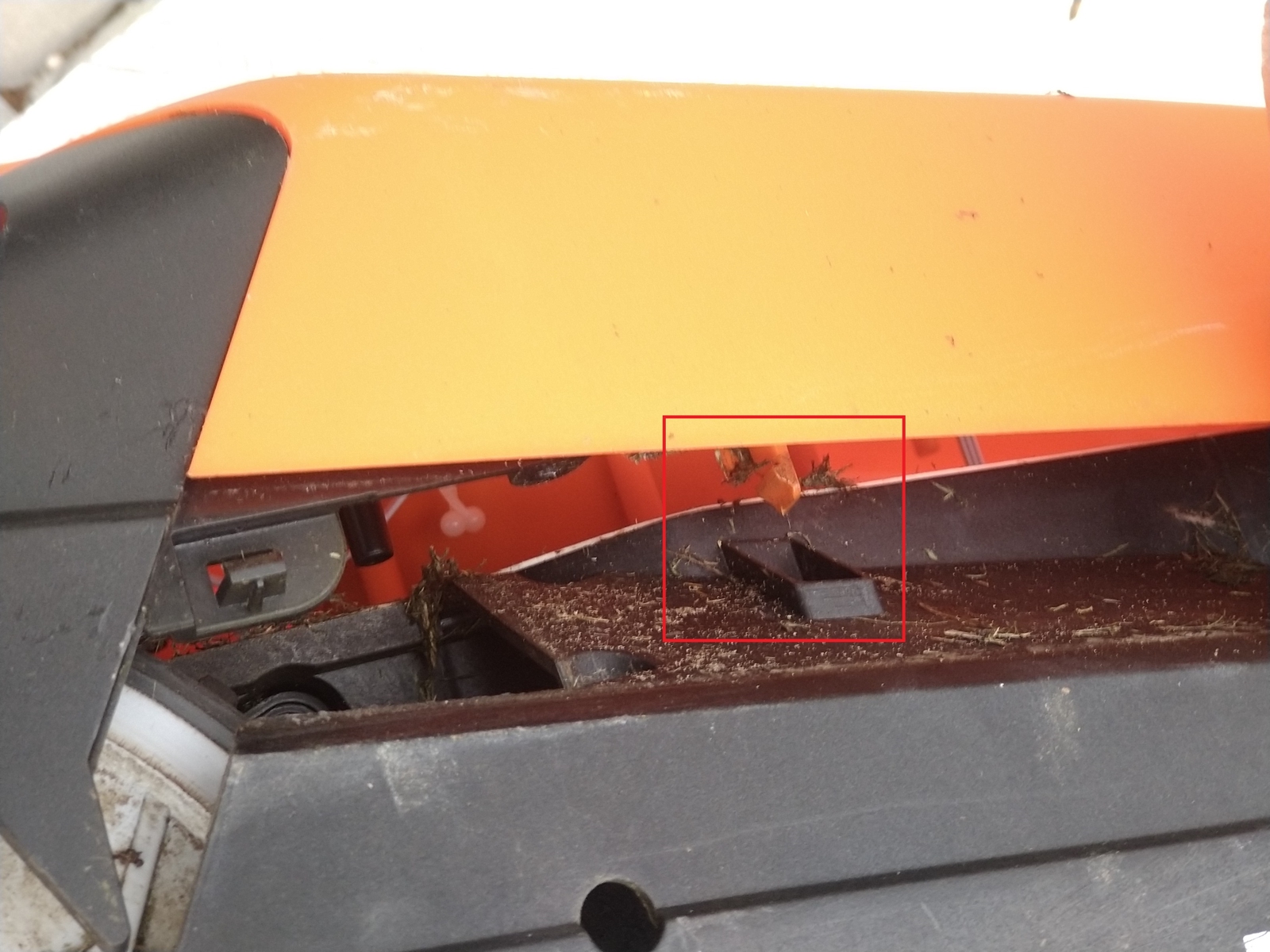
Pry the cover
This is a bit tricky in some parts, so I recommend you checking YouTube video here: YouTube Video. The relevant time is: 2:25 - 5:08.
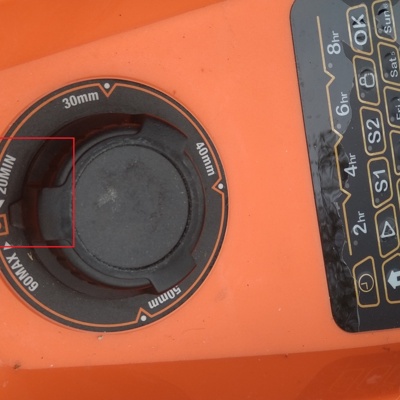 1 Set cutting height to minimum (20mm)
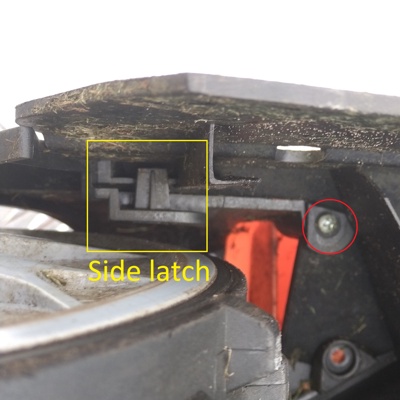 2 Unscrew small screws next to the latch
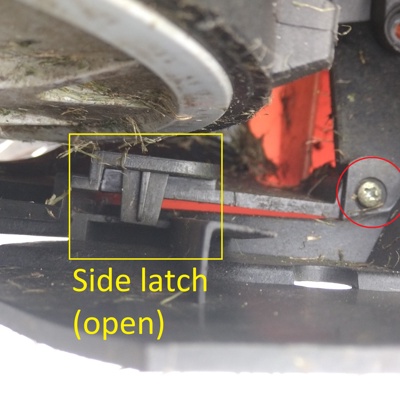 3 Maybe it's optional, you see that I've managed to unlatch it with screw in place
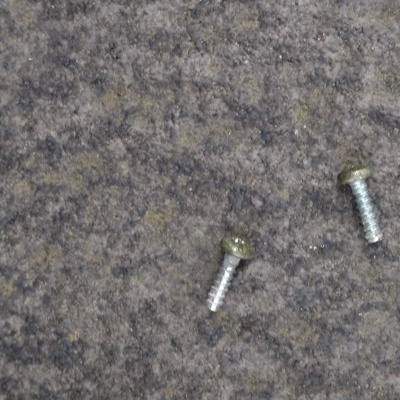 4 Save the screws
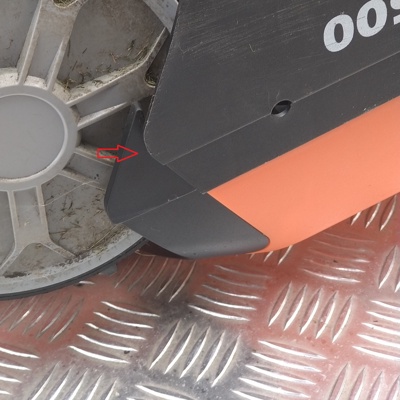 5 Press the black part to unlock side latch
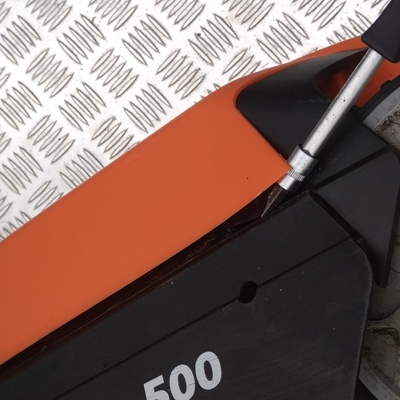 6 Push the bottom latch with a finger (not visible here) while lifting the cover
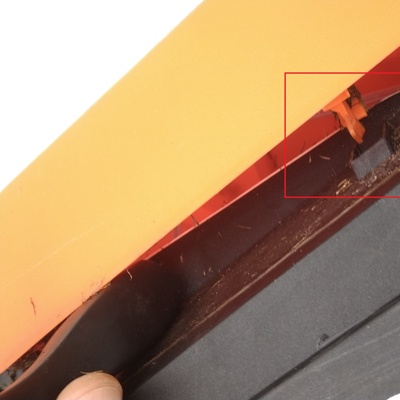 7 Bottom latch came out
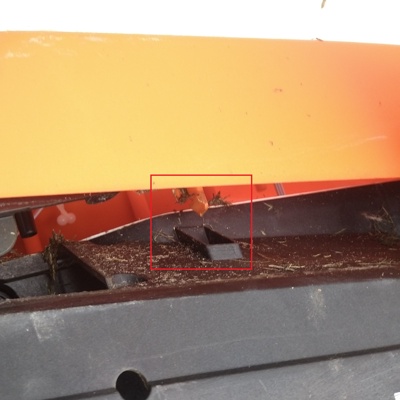 8 Opposite bottom latch came out, cover can be carefully lifted



Unplug the cover
2 small wires on the front going to wheel sensors, and 1 wide wire from mainboard to cover UI board. Screwdriver is in the pictures for illustrative purposes, you can simply hold it with your hand.
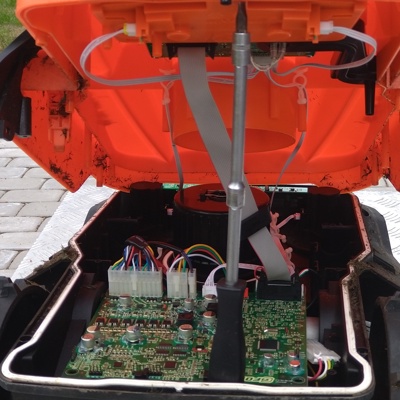 1 Back view, unplug wide cable from mainboard
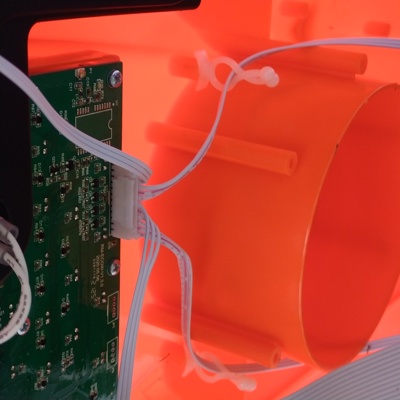 2 Front top view
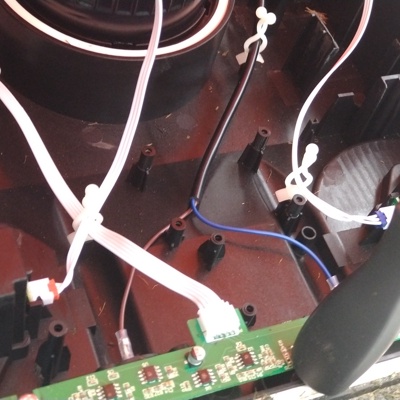 3 Front bottom view, unplug wheel sensor cables
 4 Wheel sensor cables unplugged and removed from wire organizers
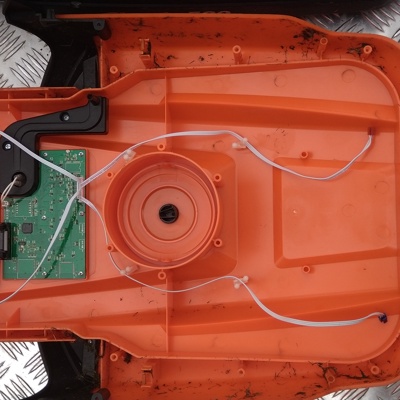 5 Cover removed
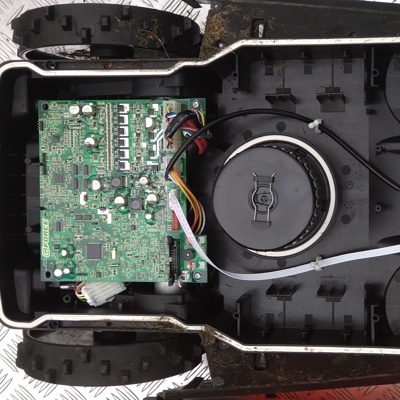 6 Mower with cover removed


Unplug the mainboard


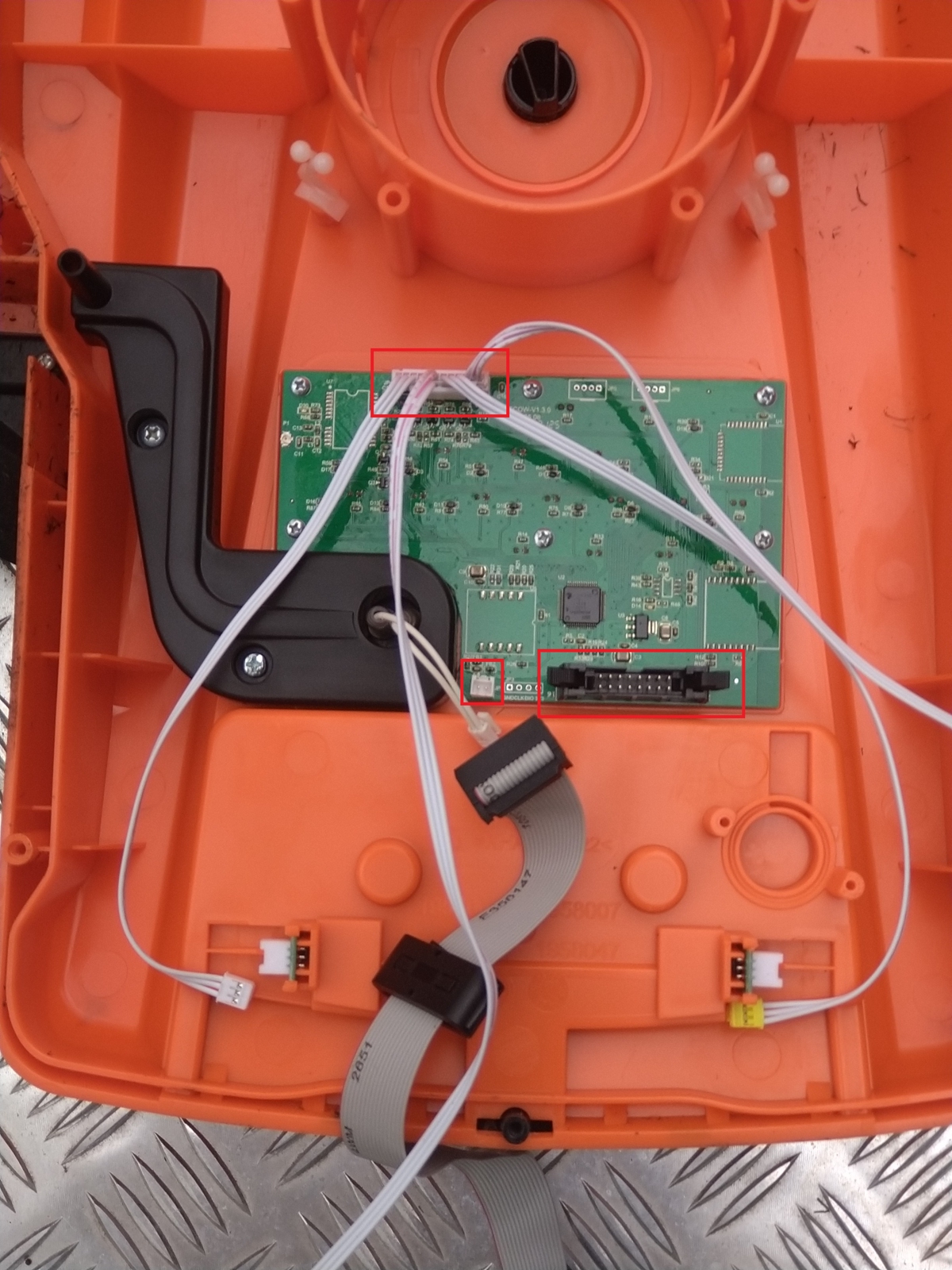
Remove front PCB


Remove cover UI board
Info
This section assumes that you are completely replacing the stock UI board with a custom one. There is an option to reuse stock board by flashing it with custom firmware. If you are going to go this path - leave it in place. You can find more information in the Cover UI Repo *.
* Would be nice if someone could transfer this to the Knowledge Base on this website though.
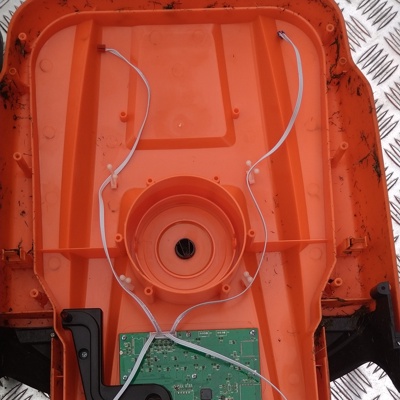 1 Unplug stop button sensor wires
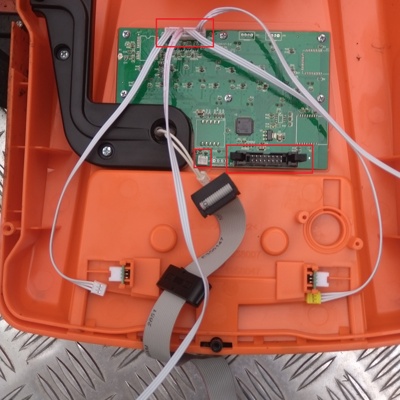 2 Unplug mainboard cable, emergency sensor cable and rain sensor
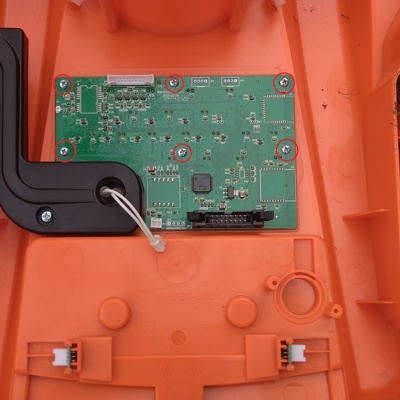 3 Unscrew the board, save the screws
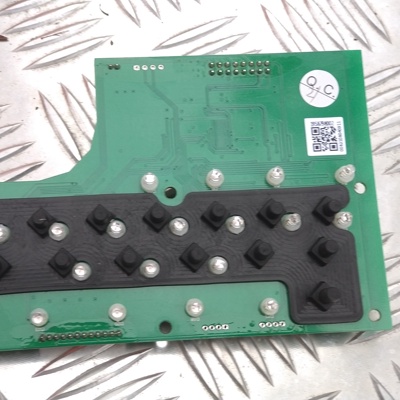 4 Remove rubber protector from the board
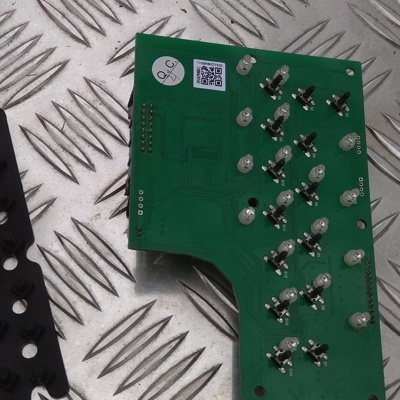 5 Save the protector, throw everything else away



Step 2.4.2: Remove Stock Electronics
You will need to remove these stock electronics:
- Mainboard
- Perimeter Sensor (slim PCB in the front of the robot).
- All cables in the orange cover (emergency stop).
Keep the battery in place.
Step 2.4.3: Small Preparations
3.1 Cutting Plastic Tabs in the Lid
On some YardForce Classic 500 models, in the lid there are plastic tabs which are in the way when installing the OpenMower mainboard.
We need to clip these tabs off. I have used a large side cutter, but you can also use a Dremel or whatever you have handy.

If your cover does not have tabs, you don’t need to do anything here.
3.2 Assemble GPS Antenna Holder
 Take the GPS antenna holder and assemble it as shown in the picture.
3.3 Add new connectors to the Emergency Stop Cables
The Open Mower mainboard uses one JST XH connectors for each of the emergency stop sensors, whereas the original YardForce Classic 500 uses one large connector with all emergency stop buttons connected to it.
In the following picture you can see the original connector cable.

We will now create four cables, one for each emergency stop sensor. To do this:
- First, Cut the cable very close to the large connector as shown in the picture. You will need the whole length of the emergency stop cables.
- Then, crimp XH connectors to the other end of the cable as shown in the picture below. Make sure to check the pinout! There is a twist in the connector!
- Repeat this step for all four emergency stop sensors, so that each one has an XH connector at the end. The pinout is the same for all of them.

In the end you will have four cables with different lengths, but the same pinout.
3.4 Create a cable for the CoverUI
If you are going to use a custom CoverUI board, you will need to create a cable to connect it to the mainboard.
- Take four wires with around 20 cm length.
- Crimp XH connectors on both sides of the cables as shown in the picture. The connections are “straight through”, so pin 1 connectos to pin 1 on the other side and so on.

Step 2.4.4: Install OpenMower Electronics
Now you can install the OpenMower mainboard and the GPS antenna holder we prepared earlier.
- Put the mainboard into the mower just as the original board was installed
(in the rear it sits between plastic tabs, on the front there are two screws holding it in place). - To fit the GPS holder into the mower, you need need to remove two of the white plastic cable ties by just pulling them upwards. Then plug it into the corresponding holes and fix it with one screw you saved earlier.
- Connect all cables as shown in the picture and the list below.
When finished, it should look like this:

The connections are as follows:
- Mower Motor Sensor
- Main Motor Connector (Drive motors, mower motors, sensors)
- Power Connector
- Charging Contacts
- Emergency Stop Button in the Lid (left / right side doesn’t matter)
- Emergency Stop Button in the Lid (left / right side doesn’t matter)
- USB Connector on the Rear of the Robot
- Cover UI Board in the Lid (optional)
- GPS Antenna
- Lift Sensor (left / right side doesn’t matter)
- Lift Sensor (left / right side doesn’t matter)
Step 2.4.5: Install external WiFi Antenna (optional)
If you want to use an external WiFi antenna for better reception, installation is simple.

Prerequisites
Things you will need:
- WiFi Antenna Mount: 3D printed part available on Printables
- Two Screws you can use the screws from the front sensor we removed earlier
- WiFi Antenna with Cable You can get it from Amazon
Steps:
- Mount the antenna to the holder
- Mount the holder to the mower using the two screws
- Connect the antenna to the CM4 board
- Zip tie the cable to the corner of the PCB
Step 2.4.6: First Startup
It’s time to power the robot up by hitting the switch at the back of the robot.
Warning
If you see / smell anything unexpected, turn the switch off immediately!
This includes but is not limited to:
- Smoke / Fire
- Smell of hot electronics
- Blown Fuses
Some battery packs don’t like the inrush current and will turn off immediately. If this happens, you can try to turn the switch off and on again and it should work.
Once turned on, LEDs should start blinking on the ESCs, the GPS, the xCore board and the mainboard. Keep the robot turned on for at least five minutes to maker sure the CM4 boots up properly. It does setup during the first boot.
Info
It’s a good idea to place the mower into the docking station, so that the battery doesn’t drain.
In this state, the battery does not charge, because the core board does not have the correct firmware installed, but the docking voltage will still be used to power the electronics, so the battery will not drain.
If everything seems healthy, proceed to the Software Setup.
Otherwise, stop here and ask for help on the Discord server.